Classwork 1: Working with Linux
Tuesday, July 09, 2012[Previous Classwork] [Next Classwork]
Complete the following:
- Ensure the machine is booted into Linux
- Login to Linux
- Open a termimal from the top left Applications menu -> System Tools -> Terminal
- First create a directory for you to work in by running:
mkdir cw01 - Type
lsand see if you can see your directory -

- If your directory isn't there, ask for help
- Type
pwdto see where you are currently - Type
cd cw01to move from the current directory into the cw01 directory you just created - Type
pwdagain and see if the output is different from last time -

- Type
nano cw01.txtto open up the nano text editor - You should then see a screen like below:
-
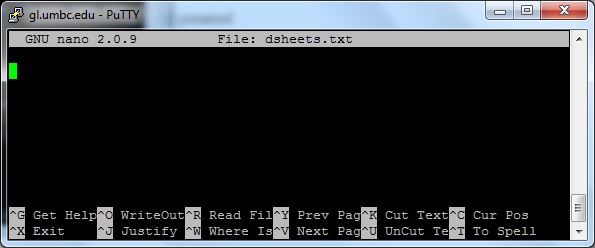
- Nano is a text editor that provides on screen help so it is easier to get started with for someone new to Unix.
- The nano commands are displayed as "^G" which stands for pressing CTRL-G together. Try pressing CTRL-G now in nano to read the help.
- After reading help press ^X (CTRL-X) to exit from help back to the main screen.
- Press ^X from the main screen to exit nano back to the terminal command prompt.
- Type
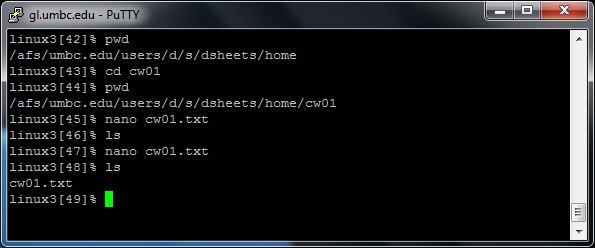
lsto see if the file you edited is there. You should see output like below: -

- No file "cw01.txt" was created because I never saved the file.
- Type
nano cw01.txtagain to open up nano a second time. - Once in nano, type in your name and then type ^O (CTRL-O) to write out the file. Nano will ask you to verify the file name, and then you should see:
-

- Wrote 1 line Indicates that we successfully saved our file.
- Type ^X (CTRL-X) from nano to exit after saving your file.
- Type
lsto see if the file you edited is there. You should see output like below now: -
- Once you are done editing your file, submit it by typing the following command,
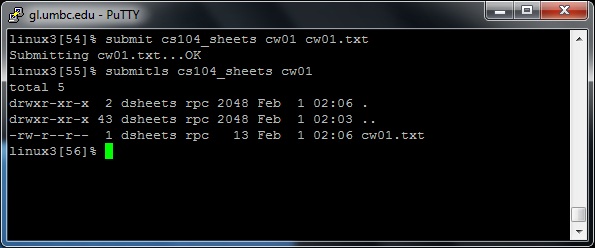
submit cs104 cw01 cw01.txt - After submitting your file, you can verify your file was submitting by typing the following command,
submitls cs104 cw01 - The submitls command should show output like below:
-